logo
Contact

How to tell whether an IP is under attack

Check the Under attack badge, Attacks tab, PPS, volume, protocol and mitigation state without mistaking symptoms for evidence.

Updated 8/3/20264 min read

Panel-visible signals

  • Under attack badge when active activity exists
  • Attacks-tab count
  • Active, mitigated or resolved status
  • Attack type or description
  • Packets and bits per second when available
  • Protocol and event time
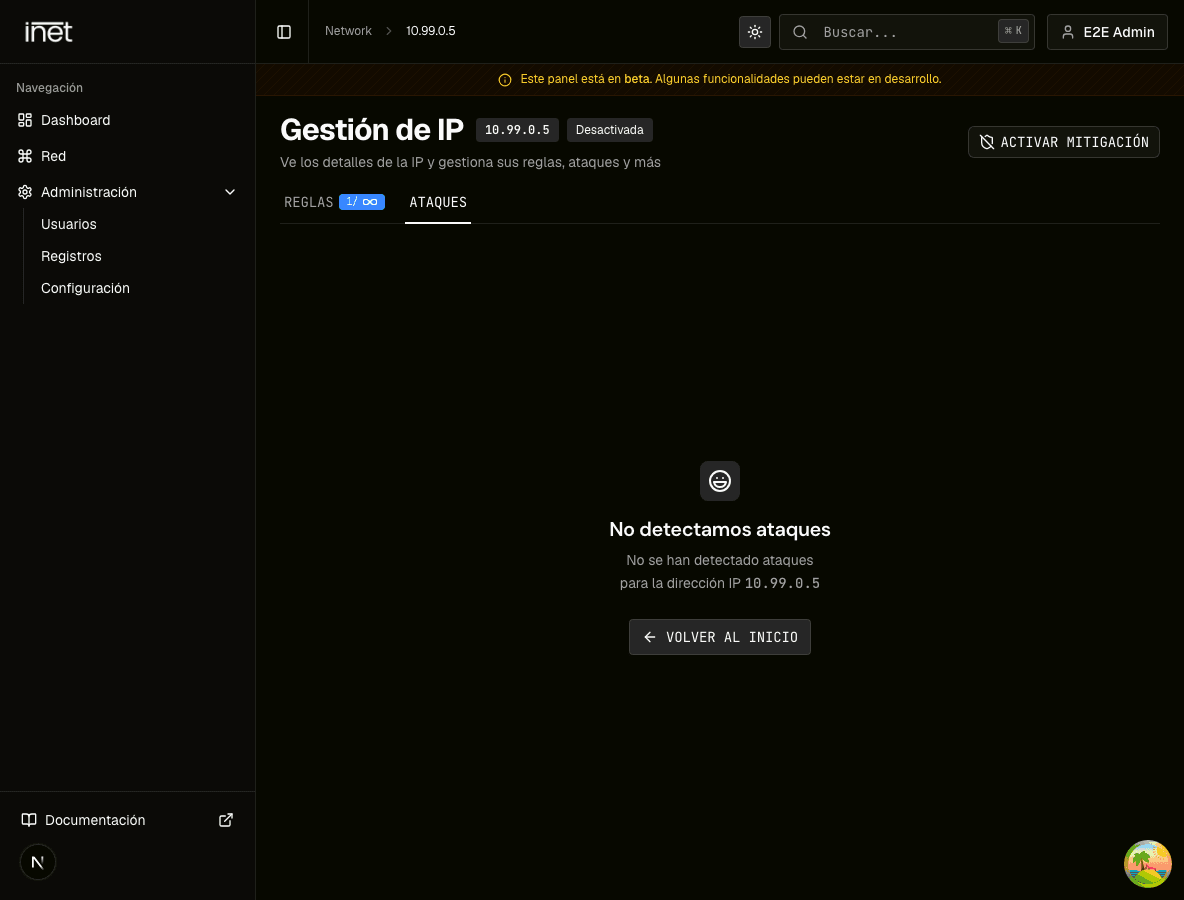
Dark Attacks tab for a demonstration IP with no active attacks
The Attacks tab lists provider-reported events for the IP; an empty state is also useful evidence.

Related guide: How inetHost DDoS mitigation works

Verification procedure

  1. 01Confirm the IPOpen Network, find the exact address and enter IP Management.
  2. 02Check the headerRead Enabled or Disabled and look for Under attack. Mitigation state and attack state are different.
  3. 03Open AttacksReview active and available finished events. Compare time, protocol, PPS and volume.
  4. 04Correlate the serviceCompare event time with application logs and metrics. CPU pressure, software errors or self-generated load may look similar.
  5. 05Record evidenceCapture IP, timezone, start time, symptoms, visible event and mitigation status before contacting support.

When to escalate

Escalate when you cannot enable mitigation, the state does not update, the service remains affected while mitigation is enabled, or panel data conflicts with your metrics.

Frequently asked questions

Is high traffic always an attack?

No. It may be legitimate demand, an internal job or an application problem. Correlate panel events with your metrics.

Where is Active Attacks?

Customers should use the Attacks tab within each IP detail. The global administration route is not part of this public workflow.

Sources

  1. inetHost — Panel de mitigación
  2. inetHost — Cloud VPS mitigado
How to tell whether an IP is under attack | inetHost