
logo
Contact

How to use the inetHost mitigation panel

Navigate the inetHost mitigation panel, find protected IP addresses, review available activity and open the detail view used to manage mitigation rules.

Updated 8/3/20264 min read

What the panel shows

After sign-in, the panel presents an operational summary and the areas available to your account. Network is the starting point for locating protected addresses and opening their detail pages.

  • Dashboard: available summary
  • Network: IP inventory and search
  • IP detail: rules and activity
  • Profile: personal details and activity

Related guide: How mitigation-panel rules work

From the list to an IP

Search for the address you need and open its row. Before creating or editing a rule, confirm that the page header matches the intended IP and review the rule counter displayed by the interface.
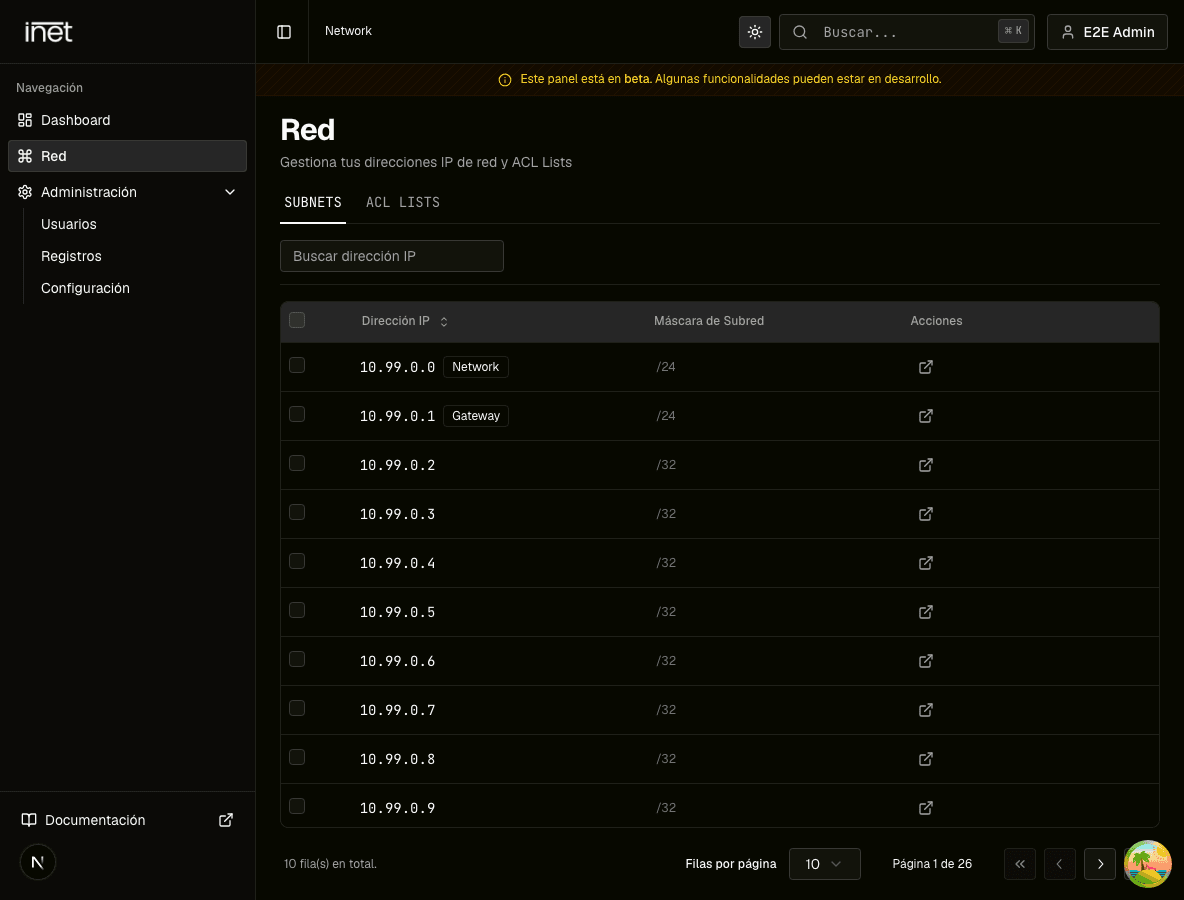
Mitigation-panel Network list with demonstration IP addresses
Use Network to find the protected address. The screenshot uses demonstration IPs and a Spanish panel interface.
  1. 01Open NetworkUse the sidebar to open the protected-address list.
  2. 02Find the IPFilter the list and verify the full address.
  3. 03Open detailsSelect the IP to review its rules and activity tabs.

Before changing a rule

A rule can change which traffic reaches a service. Record the previous state, confirm protocol and port with the application, and work during a window where you can test and revert.

Frequently asked questions

Does every plan include panel access?

Panel access is associated with the Cloud Mitigated services identified by inetHost. Check your plan or contact support if access is missing.

Where are rules managed?

Open Network, select the protected IP, and use its Rules tab. The current list and create action are available there.

Sources

  1. inetHost — Panel de mitigación
  2. inetHost — Cloud VPS mitigado
  3. Cloudflare Learning Center — What is a DDoS attack?
How to use the inetHost mitigation panel | inetHost